Ever wonder why your device loses life so quickly? You expect a full day, but power slips away. The main reasons are simple: bright screens, many apps running in the background, and weak signal that forces extra work.
This short guide gives you clear, gentle steps you can start right now. You’ll learn to use Battery Saver, lower screen brightness, limit background activity, and turn off unused connections. Small changes protect your battery life without taking away how you use your device.
If problems persist, you can check the system battery screen to see what uses the most power. Back up your data, consider a reset or replacement, and look into repair or warranty options if needed. These tips aim to make your phone feel reliable again by the end of the day.
Key Takeaways
- Spot the causes: bright screen, background apps, and weak signal are common reasons.
- Turn on Battery Saver and lower brightness to save power quickly.
- Limit background activity and switch off unused Wi‑Fi, Bluetooth, or GPS.
- Keep your OS and apps updated to reduce hidden issues.
- Charge smartly and use reliable chargers to protect long-term life.
- If nothing helps, check for aging phone battery or seek repair options.
Quick hook: Keep your phone alive all day with a few easy tweaks
You don’t need a new device — a few quick adjustments will stretch its life. These moves take minutes and often add hours of reliable power to your day.
Cut what you don’t need and keep what matters. Lower screen brightness, trim notifications, and close unused apps to reduce background activity. That alone makes your device feel snappier.
- Tap the battery saver mode to limit power use in one step when you’re away from a charger.
- Turn off features you aren’t using, like Bluetooth or location, so the device can breathe.
- Keep important alerts but mute nonessential notifications to save power and focus.
“A few smart habits can add hours back to your day.”
Try these now: adjust brightness, close extra apps, and enable battery saver mode. Small changes reduce drain and help you get through the day without stress.
Why your battery drains so fast
Small habits often explain why your device loses power quicker than expected. These reasons include display use, apps that run unseen, and poor signal. Each adds steady wear and higher usage over the day.
Screen brightness and display time
High screen brightness and long display time use lots of power. Bright screens push the display hard every minute it is on.
Lowering brightness and shortening the screen timeout helps right away.
Apps running in the background
Many apps keep syncing data and pinging services when you are not using them. Social apps, mail, and chat keep processes alive. That background work raises steady power use.
Weak signal and always-on connectivity
In poor signal areas, your phone boosts effort to stay connected. Constant Wi‑Fi, location, and auto-sync also add to daily usage. Older software can miss power improvements and make these causes worse.
“A few small changes can cut needless power use and add hours to your day.”
- Bright screens use energy; long screen-on time adds up.
- Apps running in the background sync and send notifications.
- Weak signal forces the device to work harder to hold a connection.
| Cause | Typical impact | Quick action |
|---|---|---|
| Display / brightness | High power use | Lower brightness, reduce timeout |
| Background apps | Steady drain | Limit background data, close unused apps |
| Weak signal & services | Spikes in power usage | Use Airplane Mode in no-signal areas |
Fast fixes you can try right now
Make quick adjustments in Settings that stretch your device’s charge right away. These steps are short, clear, and work on both Android and iPhone.
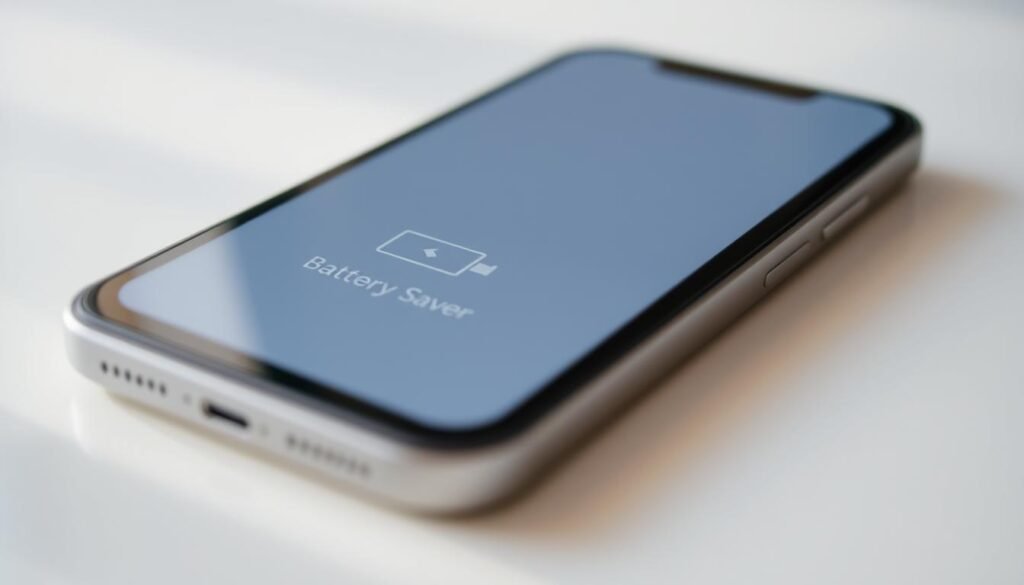
Turn on Battery Saver or Low Power Mode
Switch on Battery Saver or Low Power Mode to cut background activity, reduce visual effects, and lower performance until you can charge. This limits sync and stops many apps from using power in the background.
Lower screen brightness and shorten screen timeout
Reduce your screen brightness to a comfortable level since the display often draws the most energy. Then shorten the screen timeout so the display turns off sooner when idle.
- Close or pause background apps you don’t need now so they stop using power.
- Open Settings and make these changes in under a minute; you’ll notice more life the same day.
- If you want extra gains, reduce animations and turn off always-on display.
“Quick tweaks in Settings add hours of useful time when you need it most.”
phone battery draining fast fix: simple settings that make a big difference
A few taps in Settings will stop many apps from using power needlessly. Start with small changes and you’ll notice longer life without changing how you use your device.
Limit background activity for power-hungry apps
Open Settings and restrict apps running background tasks that you rarely open. Social apps, email, and games often keep syncing and consume power even when idle.
Cut down notifications and vibration
Trim alerts to essentials only. Fewer notifications mean fewer screen wake-ups and less vibration, which reduces steady power use.
Use dark mode (great for OLED/AMOLED screens)
Switch on dark mode if your display supports it. On OLED or AMOLED screens, black pixels use less energy and help extend battery life.
Turn off auto-sync and auto-backup you don’t need
Pause auto-sync for noncritical accounts and stop unneeded backups. That cuts background data and services that constantly draw power.
- Set sleep limits for apps so they stop trying to run all day.
- Turn off keyboard vibration and heavy haptics to save small, steady energy.
- Check weekly which apps consume battery and adjust limits in Settings.
“Small, consistent tweaks in Settings add hours of useful time.”
See what’s actually using your battery
Open Settings to see a clear list of what uses power on your device today. This view helps you spot specific apps and system features that affect phone battery life.
Android: Settings > Battery > Battery usage
Go to Settings, choose Battery, then Battery usage to view exact percentages and time active. You’ll see which apps and system items ran most in the last 24 hours.
iPhone: Settings > Battery
Open Settings and tap Battery to view graphs and app-by-app usage. Check Battery Health to read your maximum capacity and baseline for phone battery life.
- Open Settings and check Battery usage for today and the last 24 hours to see top drains.
- Tap any app with high numbers and limit background refresh, reduce notifications, or uninstall the app.
- If “Screen” ranks high, lower brightness and shorten auto-lock to cut screen power use.
- Gather this data, make changes, and re-check after a day or two to confirm reduced battery drain.
“Use the usage screen to make data-driven changes that extend your device’s useful time.”
Update and protect your software
Regular software updates often bring hidden tweaks that ease load on your device.
Keep your OS and apps up to date. Developers ship updates that include power optimizations, bug fixes, and improved features. Installing updates can improve battery life and overall stability without changing how you use the device.
Outdated software can cause problems. Old versions may crash, loop, or run extra tasks in the background and quietly consume battery all day. Stay current to avoid those hidden drains.
Scan for malware and remove shady apps
Run a trusted security scan to find apps that send data, show ads, or run secret services. Remove any app you didn’t install on purpose.
- Install updates for your OS and apps—developers often add power fixes that help battery life.
- Check app permissions; revoke access that seems unnecessary to prevent needless background use.
- Keep only the apps you use so fewer services run behind the scenes and less power will be consumed.
- Review battery health if capacity keeps dropping and plan next steps.
“Small, regular updates and a quick security scan can cut many common battery issues.”
Charge smarter and avoid extreme temperatures
Smart charging and temperature care keep your device healthier over time. Simple habits while you charge can protect battery health and give you more reliable power each day.
Healthy charging habits
Try to keep your charge between roughly 20% and 80% most of the time. This reduces wear and can extend battery life without extra effort.
Avoid deep, full drains and long overnight top‑offs. Short, regular charges are gentler and save time in the long run.
Keep your device in a safe temperature range
High temperatures speed up wear. Keep your phone out of hot cars and away from heaters.
Cold weather can lower performance. Let the device warm to room temperatures before heavy use.
Use reliable, compatible chargers and cables
Use original or certified chargers and good cables so power stays stable and safe. Give your phone a bit of space while charging so it can manage heat.
“Simple, mindful steps during charging protect battery health and add useful life to your device.”
Tame connectivity so it doesn’t drain you
Connectivity features can run quietly and use valuable power all day. A few quick toggles stop constant scans, pings, and hidden syncs so your device lasts longer between charges.
Turn off Wi‑Fi, Bluetooth, and location when not needed
Switch off Wi‑Fi and Bluetooth when you leave home or work so your phone stops scanning networks and devices all day.
Limit location services to apps that truly need GPS. Most apps do not need your location every minute.
Stop app features that ping location or upload data in the background unless needed.
Use Airplane Mode in no‑signal areas
In dead zones, turn on Airplane Mode so your phone stops searching for weak signals. That search can cause steady battery drain.
When you resume service, switch the mode off and reconnect. It’s an easy, high-impact habit during travel or in basements.
- Turn off location for social and shopping apps that rarely need GPS.
- Disable Bluetooth after streaming or pairing to save small bits of power.
- Limit background refresh for map and ride-share apps to stop hidden pings.
- Re-check toggles during travel; a quick scan keeps devices alive much longer.
| Toggle | What it stops | When to use |
|---|---|---|
| Wi‑Fi | Network scans and auto-connect | Leave home/work or on mobile data |
| Bluetooth | Device discovery and streaming | After audio use or pairing |
| Location services | GPS pings and background updates | Disable for nonessential apps |
“Quick toggles beat slow, hidden drains — check them before you leave.”
If the battery still drains fast
If simple settings and quick tweaks didn’t solve the problem, there are calm next steps you can take. Back up your data first so nothing is lost. A careful reset often clears hidden software issues.
Try a factory reset after a full backup
Back up photos, messages, and app data, then use Settings to perform a factory reset. After the reset, install updates first and add apps slowly. This helps you spot any app that causes battery issues early.
Consider a battery replacement if it’s aging
Old lithium‑ion cells lose capacity over time. If your battery health is low or the device shuts down at random, schedule a replacement. A new battery can restore steady phone battery life and make your phone feel fresh.
Check hardware, warranty, and repair options
If the phone was dropped, soaked, or exposed to heat, get a hardware check. If you notice swelling, odd charging behavior, or excess heat, stop using the device and seek service right away.
- Use Settings to back up, then reset to clear deep software issues.
- Reinstall updates before restoring apps to avoid repeat battery issues.
- Check warranty or repair programs—some devices qualify for low-cost or free repairs.
“When deeper steps are needed, a calm, ordered approach gets your device back to reliable power.”
Wrap-up: simple steps that keep your battery going
A handful of changes will keep your device going when you need it most. Cut screen brightness a bit, shorten auto-lock time, and you’ll extend battery life every day. These small moves help you save battery life without changing how you use your phone.
Limit apps running and background refresh, and trim notifications to essentials. Update your phone and apps so software power fixes keep working. Use the battery usage screen to spot the main reasons for any battery drain and fine-tune settings fast.
Use Battery Saver when needed and charge smart to protect long-term life. If fast battery drain continues, a reset or a new battery can restore normal phone battery life. You’ve got this—small habits add up to big gains.